How to Channels: A Beginner's Guide for 2026
Discover how to channels can help you learn faster: find trusted tutorial channels, avoid common mistakes, and start today. Updated for 2026.

In this article
You have a phone propped against a mug, a laptop open on a settings screen, and a video paused at the exact moment the presenter says "now just click here." The button isn't there. Your app updated in March, the tutorial was filmed two years ago, and the menu that used to sit on the left now hides behind three dots.
That gap, between what a demonstration shows and what's in front of you, is where most beginners quit. How-to channels aren't a reading list. They're a set of claims you test against your own device, your own version, your own week.
This guide treats them that way. You'll learn how to search with filters instead of luck, how to judge a channel in under two minutes, and how to keep going after the video stops.
Find How-To Channels with YouTube Search Filters
People open YouTube with a problem to solve, and Google's own research on viewing habits backs that up: solving a problem and learning something new rank among the most common reasons viewers give for watching. Usefulness is the entire appeal. A how-to channel earns its place the way a good reference book does, by answering the question sitting in front of you today.
So search like someone checking a claim, not someone browsing a catalog. Open YouTube, type a task phrase instead of a topic ("how to make a weekly reflection template," not "journaling"), press search, then open the Filter panel directly beneath the search bar. Each filter works like a pre-check: it narrows results to videos more likely to show the screen you own, on the version you run.
| Setting | Where to Find It | What to Choose | Why It Helps |
|---|---|---|---|
| Sort by | Filter panel | Relevance, then Upload date | Relevance surfaces proven tutorials; date shows current steps |
| Upload date | Filter panel | This year or This month | Interfaces change, so recent videos match what you see |
| Type | Filter panel | Channel | Shows whether a creator publishes a series you can follow |
| Duration | Filter panel | Under 4 minutes, or 4 to 20 minutes | Short clips suit one fix; longer ones carry beginner context |
| Features | Filter panel | Subtitles/CC | Lets you follow with sound off or in a noisy room |
| Playlists | Channel page, Playlists tab | Series in playlist order | Replaces hunting for the next lesson |
Two settings do the heavy lifting. Upload date keeps stale demonstrations out of your results: for anything with a screen, a video older than a year may be showing a layout you will never see. Duration protects you from the opposite problem, the 90-second clip that skips the setup and leaves you guessing why step three did nothing.
Length is a clue, not a guarantee.
When a creator clears those checks, resist the urge to binge random uploads. Open the Playlists tab and start at lesson one, because tutorial series build dependencies the way a course does: lesson four assumes you finished lesson three. Sorting by Relevance first surfaces the long-running channels with staying power, and switching to Upload date afterward shows what someone published this month, which is often where the fixes live.
Finish by saving two or three channels that pass these checks. A shortlist beats searching from scratch every time you need to remember how a thing works.
Judge a Channel Before You Follow It
The strongest single signal is recency. Software moves: menus get renamed, buttons slide into overflow menus, export dialogs grow extra steps. A channel whose newest app tutorial is several years old is teaching a screen that no longer exists. Check the three most recent uploads before you give a creator an hour.
Next, open a longer lesson and watch the first two minutes. Does the presenter show every step, or a highlight reel with the boring parts cut? A full walkthrough includes the login screen, the permission prompt, and the moment something doesn't load.
Chapters are the cheapest quality test available. A 20-minute tutorial with named timestamps has usually been structured by someone who watched their own video back.
| Signal | Good Sign | Red Flag |
|---|---|---|
| Upload date | Software tutorials from the last 12 months | Newest software video is several years old |
| Demonstration length | Every step shown on screen with timestamps | Only a 30-second highlight reel |
| Chapters | Named chapters by task | No timestamps on a 20-minute tutorial |
| Stated conditions | Names the device, version, or skill level | Claims every result works everywhere |
| Failure coverage | Shows what to do when a step goes wrong | Only shows the ideal result |
| Sourcing | Links to official guidance for health, money, or legal steps | High-stakes advice with no sources |
| Comments | Viewers report results and fixes they tried | Comments are only praise or spam |
The description and pinned comment carry the conditions that decide whether a video applies to you: the operating system, the software version, the skill level assumed. Viewer comments are where results show up. Someone writing "worked on Windows 11, but the export failed at step four" is worth more than fifty heart emojis.
For topics that touch wellbeing or relationships, a video is a starting point rather than a conclusion, and online therapists, courses and forums can answer what a ten-minute clip can't.
If you're testing a channel that teaches reflection or writing, this walkthrough of how to do journal entries gives you a reference to compare the creator's method against. Score each channel against the table and drop anything with two red flags.
Accessibility Options That Keep Tutorials Usable
Tutorials assume a standard viewer: good eyesight, working speakers, steady hands, fast internet. If you fall outside that profile, the wall you hit was built into the format, and the way through it starts with settings you control.
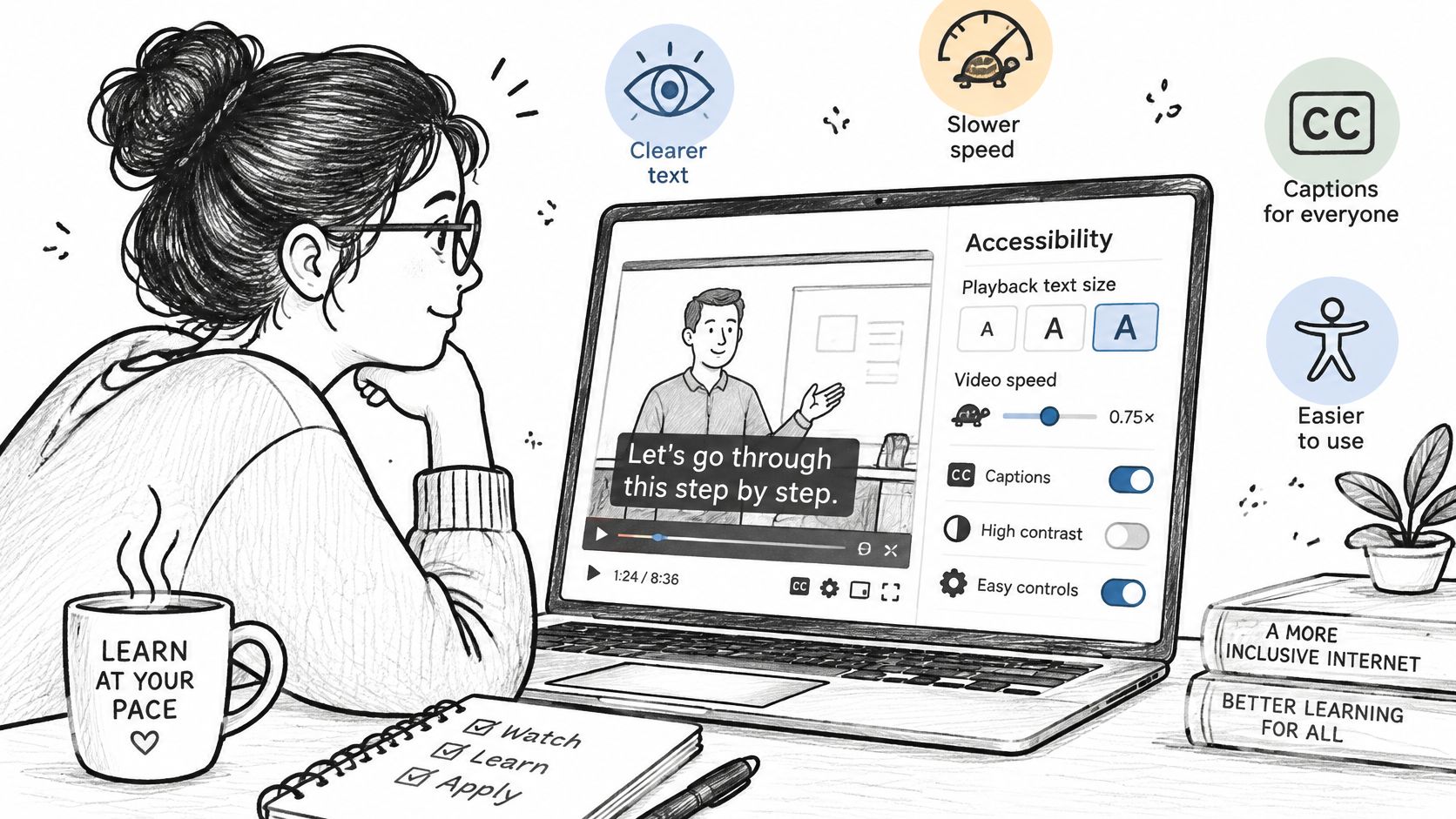
Cost matters as much as access, since free video is often the entry point, and usability decides whether a learner stays. Free gets you to the play button. What happens after depends on whether the channel planned for more than one kind of viewer.
Match the feature to the barrier before you abandon a video.
- Low vision: raise the playback text size on your device, drop the speed to 0.75x, and look for channels that publish a written step list you can read with a screen reader.
- Hearing loss: accurate captions are the starting point. A transcript that describes on-screen actions ("click the gear icon, top right") tells you far more than a transcript of speech alone.
- Motor limitations: keyboard shortcuts, voice control, and playback that holds a step on screen long enough to pause make the difference. Avoid creators who cut away immediately after clicking.
- Cognitive load: chapters, a predictable structure, and a stated time estimate for each part reduce the cost of following along.
- Limited bandwidth: downloadable step lists, lower-resolution playback, and printable summaries keep a tutorial usable when streaming stalls.
Try this first: if a video moves too fast, set playback to 0.75x before deciding the topic is beyond you. Speed is a setting, not a verdict.
These features do a second job beyond access: they help you verify. A transcript lets you check each demonstrated step against your own screen and device without scrubbing back and forth. When the captions describe a menu that doesn't exist in your version, you learn the video targets a different setup before you're twenty minutes in.
Shorter isn't always better. Compression strips out exactly the context beginners need, which is why chapters, pauses, transcripts, and printed summaries beat a tight 90-second cut. If you want to capture a lesson in text so you can keep working after the video ends, these video transcription tips from iScribe Live Transcribe explain how to turn a demonstration into a step list you control.
How to Turn a Tutorial into a Weekly Journaling Habit
A weekly reflection routine is the classic tutorial that works and then evaporates. You watch a good video, you feel capable, and three Sundays later you can't remember which notebook it was. What keeps it alive is a rule that fires without a fresh decision each week, built from steps that work on your screen, in your app, with the tools you already own.
The sequence runs in one sitting and takes about twenty minutes.
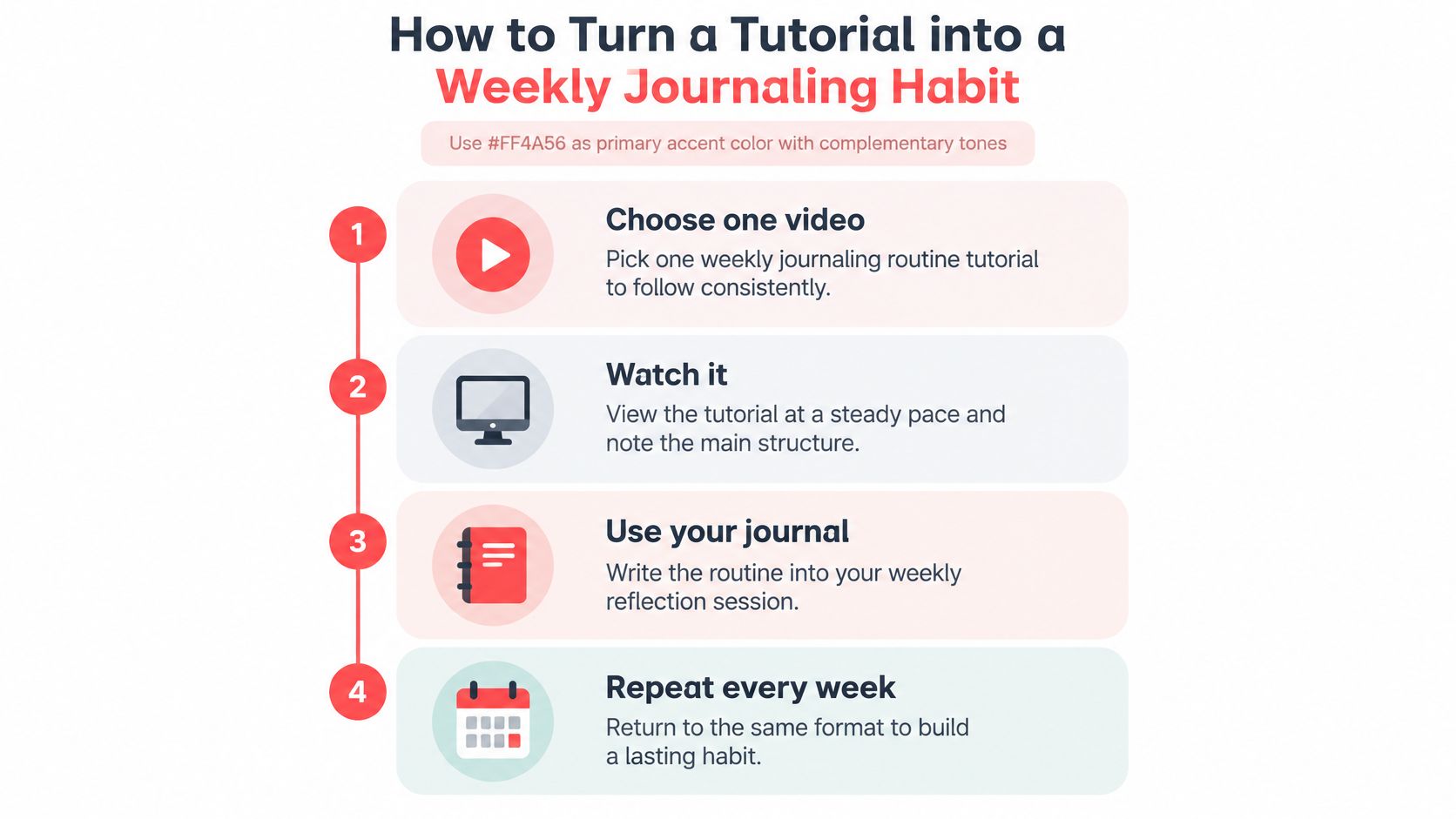
- Watch the video once, straight through. No pausing, no notes. You're learning the shape of the routine, not memorizing steps. While you watch, confirm the presenter is using the same app, the same kind of entry, and a device like yours. A mismatch is cheap to spot now and expensive to discover in week three.
- Rewatch with a pen and cut the plan down. Pause at each instruction and write only the steps you could do today with the tools you own. A routine built from a stranger's perfect setup rarely survives your first busy week.
- Name a precise target. "Record this week every Sunday evening" works where "journal more" doesn't, because vague intentions barely move behavior.
- Attach a trigger you already have. Finishing dinner. Putting the kids to bed. A calendar alert that already exists. New routines fail when they need a new slot in the day.
- Write the if-then rule out loud. If dinner is finished, then I open my journal app and add one note, mood, tag, or image. One sentence, one action, one moment.
- Rehearse it on the day you set it up. Keep the path to a record to one or two taps, because friction at the moment of starting beats enthusiasm every time.
- Review completion each Sunday. Missed a week? Shrink the rule to a single mood tag rather than abandoning the routine.
The if-then part has solid research behind it. Across 94 independent tests, implementation intentions produced a medium-to-large effect on goal attainment (d = 0.65), according to Gollwitzer and Sheeran's implementation intentions research. Wanting to journal, on its own, is a far weaker predictor: good intentions help people act on their goals, but they do not guarantee follow-through. The gap between intending and doing is exactly what the trigger and the rehearsed path are built to close.
You know the habit is forming when you've logged three consecutive weeks. A weekly notes template helps here, because a fixed structure removes the "what do I write" friction that kills week two. Once the rule survives its first disrupted week, a late dinner, a trip, a forgotten Sunday, it stops depending on the video that started it.
Fixing Problems When a Video Does Not Match Your Screen
The most common failure is a menu that moved. That's not a broken tutorial, it's a dated one. When the presenter clicks a button that isn't where they said, check the upload date first, then search the app's own help centre for the function name. Most software keeps the same feature under a new roof.
The second most common failure is an error partway through, and it almost always traces back to a setting you skipped or an input in the wrong order. Rewind to the last step that worked, then compare each field on your screen with the one in the video, one at a time.
| Symptom | Likely Cause | Fix |
|---|---|---|
| Menu or button is in a different place | App or system version changed after the video | Check the upload date, then search the app help for the function name |
| Step produces an error | A skipped setting or wrong input order | Rewind to the last step that worked and compare each input |
| Result looks different from the video | Different device, language, or default settings | Confirm your version and settings, then accept a different look if the goal is met |
| Instructions assume a skill you lack | Missing prerequisite | Find a beginner video on that prerequisite first |
| Task involves electrical work, medication, or money | The video cannot check your situation | Stop and consult a qualified professional before continuing |
Tutorials are becoming more visible while becoming less scrutinised. Search Engine Journal's analysis of YouTube trends found that YouTube citations in AI-generated search results rose 25.21% from January and 36.66% month over month from January to February 2025, with instructional content making up 35.6% of cited videos. A video can now be the answer you're handed even when nobody has checked whether it works.
Four questions to ask at every step: What if my interface differs? How do I know the result is correct? Which step caused the failure? When should I stop?
Reserve the strictest limit for high-stakes work. A video can't see your wiring, your dosage, or your accounts, and a confident demonstration is not verification. Stop and consult a qualified professional when the stakes involve electricity, medication, or money.
Pick One Channel and Test It This Week
Everything above collapses into one action you can take in the next seven days. Choose a channel from your filtered shortlist that passed the signal check. Pick one video between 4 and 20 minutes on a task you care about. Follow it once, pausing at each step, and record one result on a single day this week.
Weekly tutorial viewing isn't a niche habit, which is exactly why it deserves a test rather than a scroll. A Statista summary of global digital research reported that about one-third of internet users watched a tutorial or how-to video on YouTube each week, on a platform with roughly 2 billion users. You're not looking for an obscure resource. You're looking for the one worth repeating.
As you follow the video, keep a short log: which steps matched your screen exactly, and which needed a fix from the troubleshooting table. That log is the key output of the week. It tells you whether the channel teaches your setup or a setup you don't have.
If the task is a journaling routine, this journal how-to guide shows how to run a weekly version, so your log doubles as proof: did you record, or did you just watch?
After seven days, check three things. Did you finish one full video? Did you record or practise at least three times? Did you solve one problem yourself without emailing anyone? Two yeses means the channel earns a permanent slot and you can add a second. Fewer than two means the routine was too big, so shrink it rather than dropping it.
Key takeaway: a tutorial only helps once you've tested it on your own screen and kept the habit going after the video ended.
Start with one channel, one video, one week. That's a small enough commitment to survive.
Life Calendar turns that weekly practice into a structure you can see: every week becomes a slot for a note, an image, a mood, or a tag, so a routine built from a tutorial has somewhere concrete to land. Instead of a scattered list of entries, you get a continuous overview of your weeks and the details recorded against each one. Visit Life Calendar to start logging this week.